OliveTin and Home Assistant
Each configured integration adds a list under More > Integrations. Press A on an item to pin or unpin it.
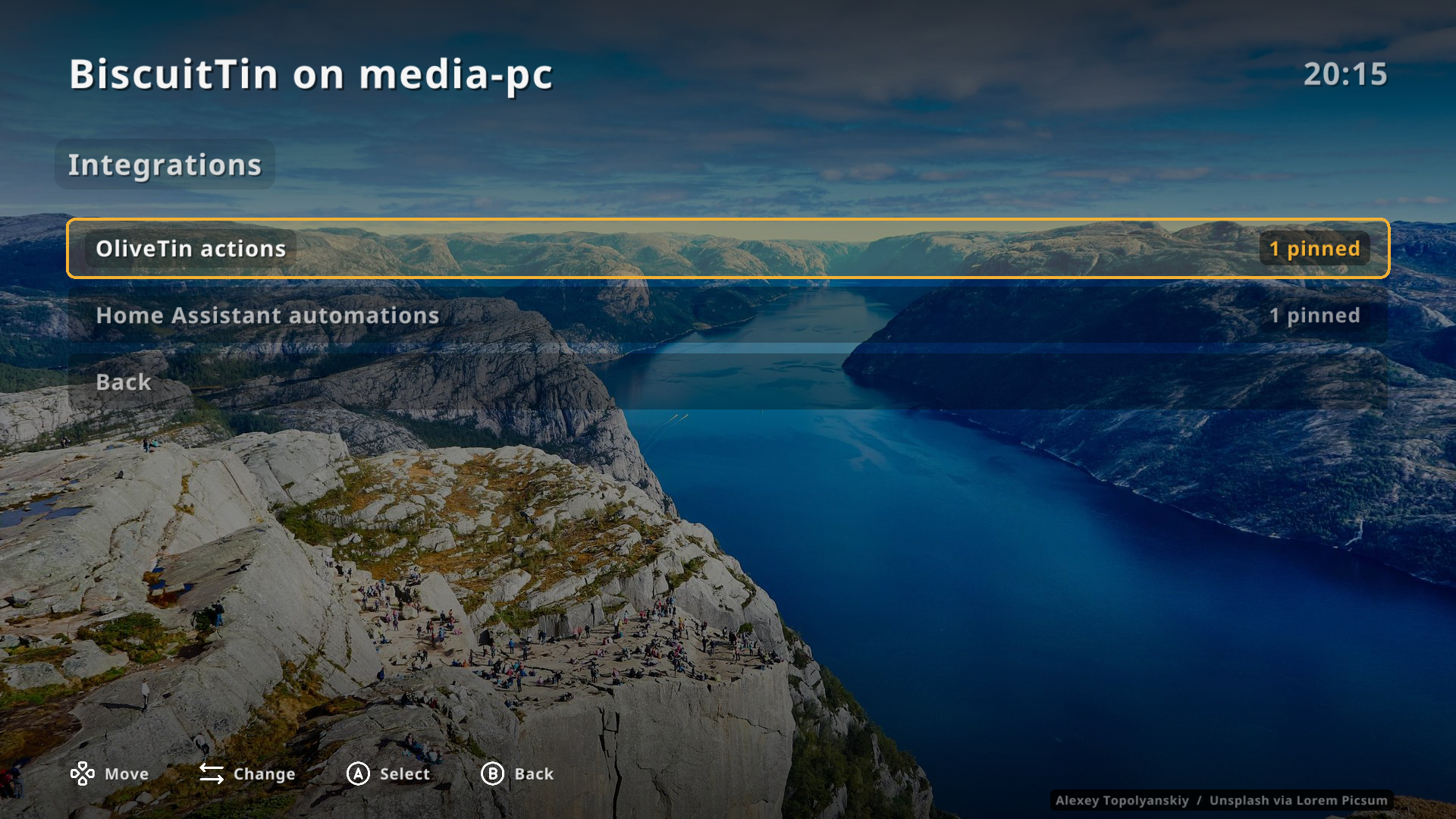
Pinned items become tiles after your configured entries.
Pins are saved to settings.yaml with their titles, so the tiles appear even when the server is down.
OliveTin
Set olivetin.url and More > Integrations > OliveTin actions lists every action the OliveTin server lets you run, grouped by dashboard or host.
olivetin:
  url: https://olivetin.example.com
Selecting a pinned tile calls StartAction with the arguments' defaults, then shows whether it finished or failed (with the exit code).
Actions with an argument that has no default are listed but can’t be pinned.
Their Iconify icons are fetched and cached like other icons.
Home Assistant
Set homeassistant.url and More > Integrations > Home Assistant automations lists every automation.
Pinned tiles call automation.trigger, which runs the automation’s actions without checking its conditions, like Run actions in Home Assistant.
homeassistant:
  url: http://homeassistant.local:8123
  # tokenFile: ~/.config/biscuittin/homeassistant.token
Create a long-lived access token (your Home Assistant profile > Security) and put it in ~/.config/biscuittin/homeassistant.token, or point tokenFile elsewhere.
A token key also works, but keeps the secret in your config file.