User Guide
When you have UAR installed, you will see a header that looks like this. The header has a couple of components;
UI Introduction

-
Next Page Refresh (Progress Bar): By default, UAR will refresh every 30 seconds. The process bar will show the time until the next refresh. It's useful to see this on heads up displays, as they can lock up, or get screen-freeze, and this progress bar proves the page has not frozen.
-
Last result: This shows how long ago the last payload was received (for example
12s ago,53m ago,2h ago,3d ago). This is useful to see if Alertmanager is delivering webhooks at all, or if there were errors talking to the UAR API. If alerts are on screen and this age grows large, it is highlighted as a warning (Alertmanager may have stopped sending repeats). If the board is empty, a long age is normal — Alertmanager does not heart beat when nothing is firing — and is not treated as an error. -
Show labels: Open Preferences in the header and set Show labels to display Prometheus label key/value pairs on each alert box. Common labels such as
alertname,instance, andjobare hidden by default;severityis still shown so you can filter by it. The choice is remembered in your browser. -
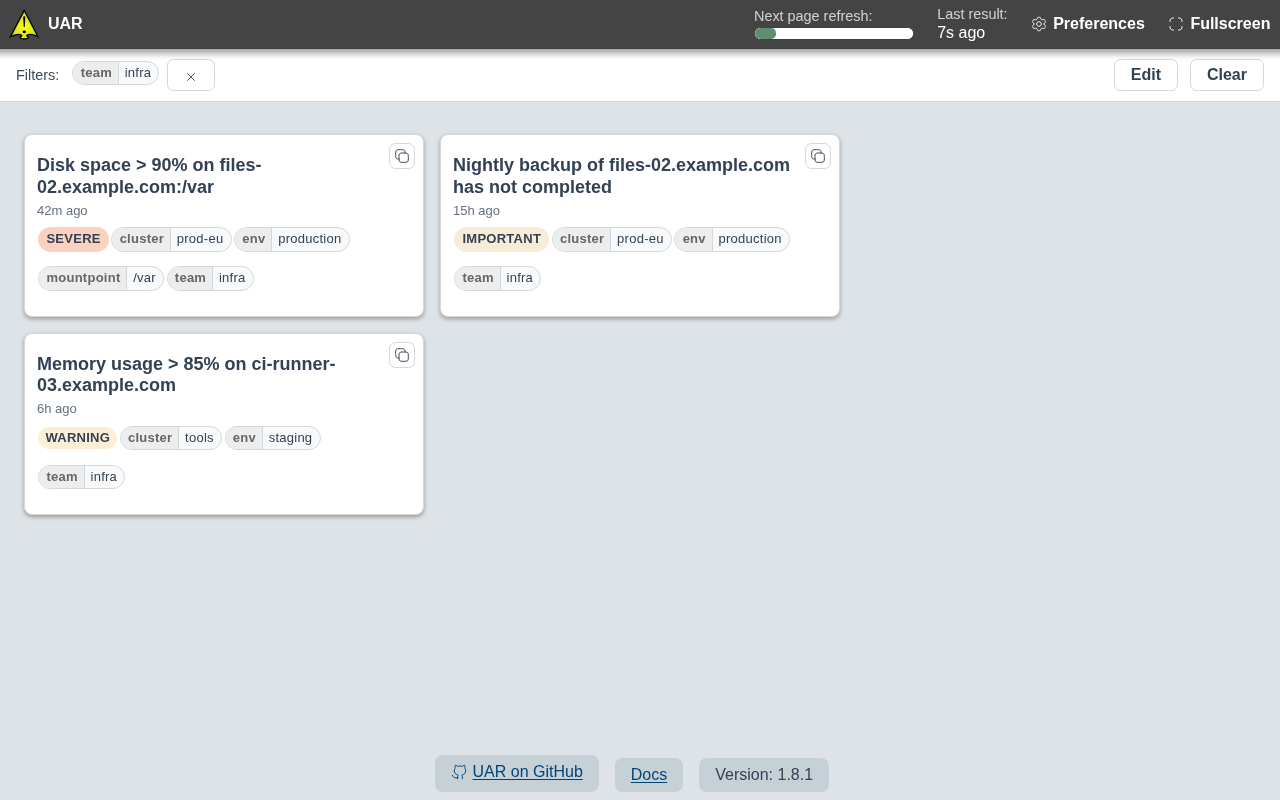
Filter by label: When labels are visible, click a label on an alert to add it to the filter bar below the header. Only alerts matching all active filters are shown. Severity filters also match aliases at the same level (for example
critandcritical). Use the × on a filter chip to remove it, Edit to change filters as free text (key=valuepairs), or Clear to remove all filters.
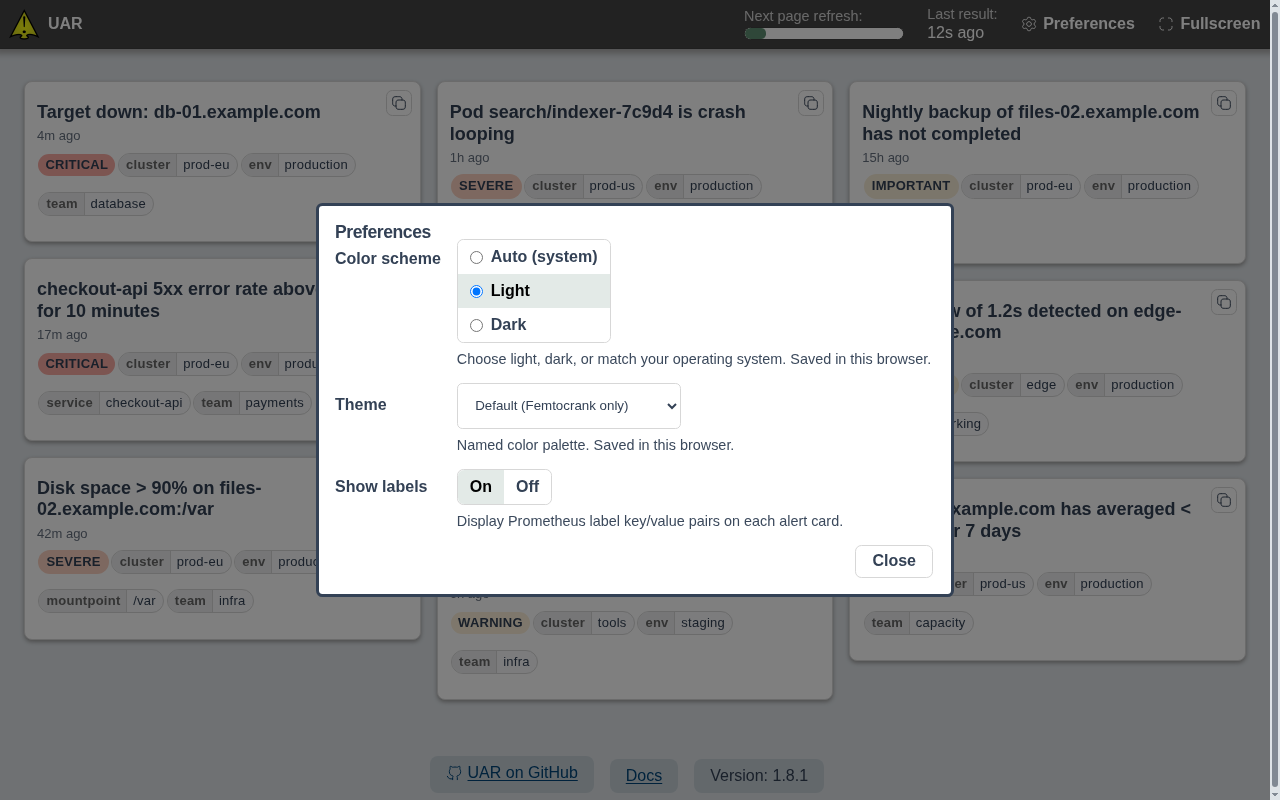
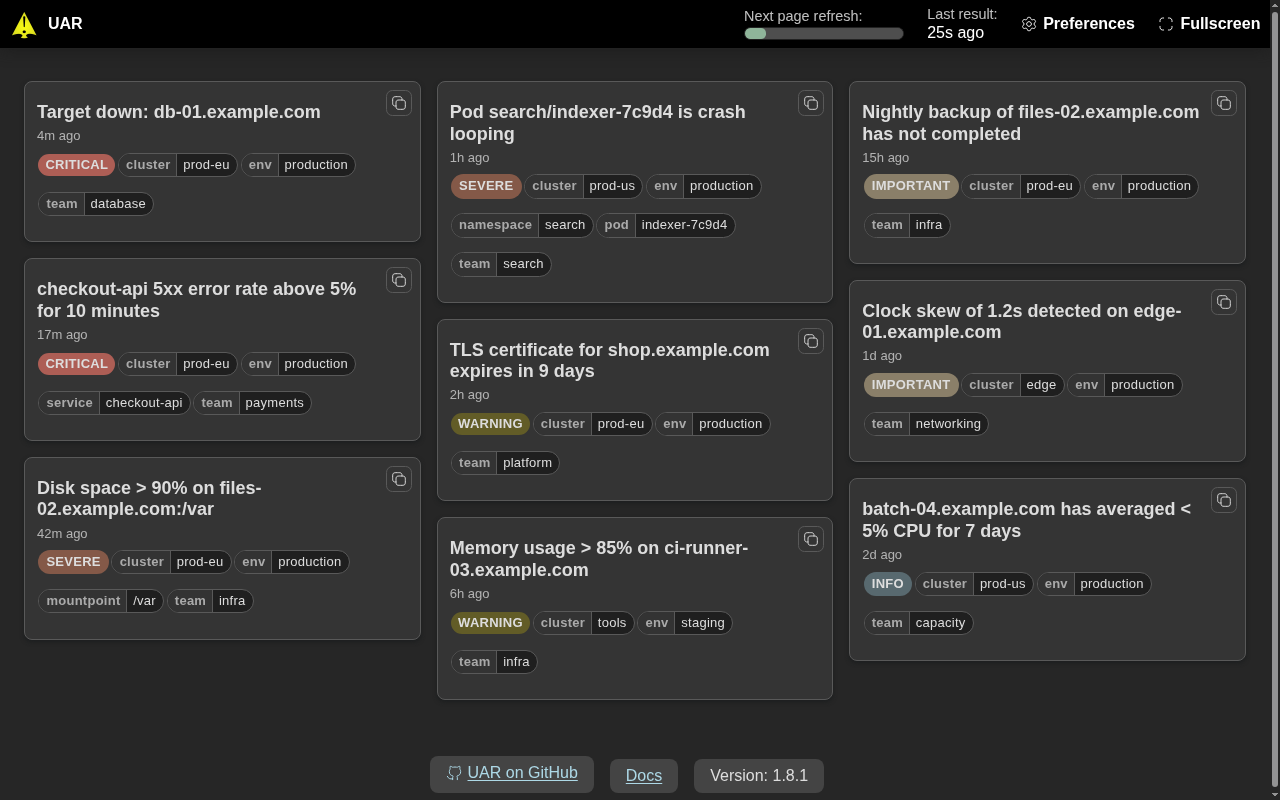
- Preferences: Choose a light, dark or automatic color scheme, a named color theme, and whether labels are shown. Preferences are saved in your browser.
Severity levels
UAR will render alerts according to their severity label, when available. The following severity levels are hard-coded, and ordered from highest to lowest;
- Critical: 1
- Severe: 2
- Warning: 3
- Important: 4
- Info: 5